When you’re evaluating disk imaging software, your main goals are reliability, ease of use, and solid recovery options. This guide highlights five top choices for Windows users that cover drive cloning, system backups, and forensic-ready imaging. Each product is evaluated for who it’s best for and why it fits a typical upgrade, backup, or recovery scenario. The buyer’s intent is clarity: find software that creates exact copies, preserves bootability, and simplifies migration to new drives.
| Product | Best For | Format | Main Benefit |
|---|---|---|---|
| NTI Echo 7 | Users upgrading drives or migrating to SSDs | Disk cloning/migration | Automatic dynamic resize and 4K drive compatibility |
| O&O DiskImage 21 Premium | Windows PC backups with fast recovery | Disk imaging & backup | Data loss prevention and quick system recovery |
| LAPLINK DiskImage | Comprehensive PC backups with recovery options | Full disk imaging | Automated backups and system recovery |
| Disk Drive Cloning Tools CD (LinuxFreak) | Bootable imaging on multiple machines | Bootable CD | Includes cloning/imaging tools for quick offline backups |
| Digital Evidence & Forensics Boot CD | Forensic imaging and data recovery | Bootable utility suite | Forensic data recovery and exact drive replication |
The following sections break down each product, with a focus on who should consider it, why it stands out, and practical limitations to watch for during decision making.
NTI Echo 7 Disk Cloning & Migration

Best for: users upgrading from an older hard drive to a larger or faster drive without reinstalling Windows or apps. Echo 7 includes 4K-sector drive compatibility and automatic dynamic resize, meaning partitions adjust automatically when cloning to different sizes. This reduces manual partitioning and speeds up drive upgrades. The product supports both legacy and newer drives in either direction, which is ideal for users performing upgrades over multiple machines or planning a big storage refresh.
- Key feature: Automatic Dynamic Resize adjusts partitions to fit the target drive size.
- Best for: Safe migrations where you want a straightforward clone without re-setup.
- Limitation: As with all cloning utilities, complex multi-OS environments may require additional steps for boot entry management.
O&O DiskImage 21 Premium
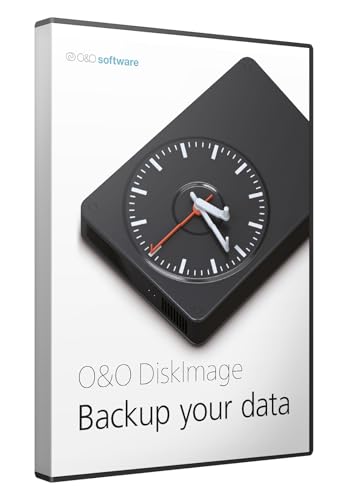
Best for: Windows users who want dependable data protection and rapid recovery with minimal downtime. DiskImage focuses on preventing data loss and speeding system recovery after crashes or hardware changes, making it a robust choice for workstations and small business PCs. It’s suitable when you need reliable backup cycles and straightforward restoration paths to maintain business continuity.
- Key feature: Fast system recovery and data-loss protection—helpful for time-critical environments.
- Best for: Businesses or power users who prioritize quick restores and proven reliability.
- Limitation: For very large enterprise ecosystems, users may explore additional centralized management options outside this package.
Laplink DiskImage

Best for: users seeking a full PC backup solution with scheduling and automated protection. DiskImage emphasizes creating complete disk images that include applications, settings, and files, enabling rapid recovery after a crash or hardware replacement. It’s particularly useful for IT environments that require predictable backup times and repeatable restore workflows.
- Key feature: Schedule automated backups for continuous protection, reducing manual intervention.
- Best for: Individuals or teams who want a repeatable, offline-safe imaging routine.
- Limitation: Backup size can be large; plan storage capacity accordingly.
Disk Drive Cloning Tools CD

Best for: technicians and power users who need a bootable, standalone imaging toolkit. The Disk Cloning Tools CD bundles multiple cloning and imaging utilities on a bootable CD, enabling offline backups and direct drive operations. It supports repartitioning, full-system cloning, and network-based backup targets, which is helpful in environments with multiple machines or limited OS access.
- Key feature: Bootable CD allows imaging without loading an OS, useful for locked-down machines.
- Best for: Tech pros performing offline backups or mass-imaging tasks.
- Limitation: Boot media can be slower than modern USB-based solutions and may require legacy hardware compatibility checks.
Digital Evidence & Forensics Boot CD
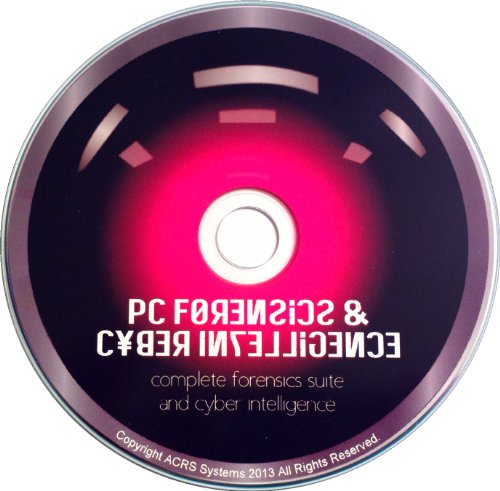
Best for: forensic professionals and investigators who need exact drive imaging and data recovery capabilities while preserving evidence integrity. This boot CD suite supports forensic data recovery, exact drive replication, and malware analysis tools to identify traces left by attackers. It’s specialized, but highly relevant when legal or investigative standards require precise bit-for-bit copies.
- Key feature: Forensic data recovery and exact bit-for-bit drive imaging.
- Best for: Analysts and investigators handling sensitive data or legal cases.
- Limitation: Not optimized for everyday consumer backups; specialized use cases prevail.
Buying Guide: Disk Imaging Software Essentials
What should you consider when choosing disk imaging software?
- Upgrade vs. backup focus: If your primary need is to upgrade drives with minimal downtime, prioritize cloning and dynamic resize capabilities (best for NTI Echo 7 type tools). If you need regular system backups and quick restores, look for scheduled backups and fast recovery features (like O&O DiskImage or Laplink DiskImage).
- Bootability and recovery: Ensure the tool can restore to dissimilar hardware or at least boot from the restored image without manual reconfiguration.
- Drive compatibility: Check support for 4K sectors and legacy drives, especially when upgrading to modern SSDs or NVMe storage.
- Storage planning: Imaging creates large files; plan for sufficient storage and consider incremental backups to save space.
- Forensic vs. consumer use: If your needs are investigative or legal, prefer tools with write-blocking, hash verification, and verifiable imaging (forensic-grade solutions).
- Ease of use: A clean interface and guided wizards shorten setup time and reduce error risk during migrations or backups.
FAQ
What is disk imaging software?
Software that creates a sector-by-sector copy of a storage drive, including the operating system, installed programs, settings, and data, enabling exact restoration to a drive of choice.
When should I clone a drive rather than back up data?
Clone when you plan to replace an entire drive or migrate to new hardware with a bootable system. Back up data when you want to protect personal files and settings without necessarily duplicating the installed OS.
Can disk imaging protect against data loss?
Yes, by creating reliable, restorable images on a separate drive or cloud storage, you can recover the system quickly after a failure or malware incident.
Do these tools work with all Windows versions?
Most products target current Windows editions; verify compatibility with your exact OS version and hardware before purchase.
Is forensic imaging different from regular imaging?
Forensic imaging emphasizes data integrity, evidence preservation, and verifiable hashes, often with specialized boot media and write-blocking capabilities.
In summary, the five highlighted options cover a spectrum from straightforward drive upgrades to professional forensic workflows. For straightforward OS migration and fast upgrades, NTI Echo 7 stands out with dynamic resize and 4K compatibility. For dependable backups and speedy recovery, O&O DiskImage 21 Premium is a solid choice. Laplink DiskImage provides scheduled backups and easy restoration, while Disk Drive Cloning Tools CD offers a bootable, offline imaging suite for technicians. Finally, Digital Evidence & Forensics Boot CD delivers specialized capabilities for forensic-grade imaging and data recovery when legal or investigative standards apply.