Find reliable options to protect photos, documents, and memories from malware, hardware failure, or accidental deletion. This guide highlights five practical backup solutions and related storage options, suitable for home and small-office users. It identifies who each product is best for and why, plus quick cautions to consider before you buy.
| Product | Best For | Key Benefit | Notes |
|---|---|---|---|
| Backup Pro 27 | Windows power users | Full system backup, image-based restore, cloud and local storage | Flexible rules for popular apps |
| WD 2TB My Passport | On-the-go professionals | Ransomware defense, portable storage, USB-C compatibility | Compact, scalable up to 6TB |
| AOMEI Backupper PRO | Multi-PC setups | Complete Windows backup and recovery suite, disk cloning | Virus/malware protection through restoration |
| NTI Backup Now EZ 7.5 | Users seeking all-in-one plan | 4-in-1 backup: scheduled, cloud, image, and file backup | CD or download options; lifetime license |
| Nero BackItUp | One-time purchase seekers | Fully automated backups with multiple destinations | Lifetime license, simple workflow |
Backup Pro 27 — Full System Backup

Features: Keep your system safe with full backups of all data, including photos, videos, documents, and emails. Supports backups for Outlook, Firefox, IE, Chrome, Edge, and Thunderbird. Flexibility to store backups on hard drives, USB drives, network drives, and cloud storage. Best for users who want comprehensive protection and smart rules for common apps.
- Best for users who need complete system image backups and cross-location storage.
- Choose this if you want robust protection against malware, hardware failures, and software faults.
- Caution: Complex setups can require time to configure optimal backup rules.
WD 2TB My Passport — Portable Backup Drive
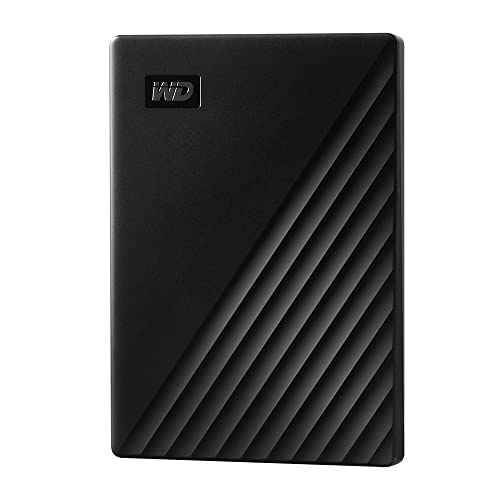
Features: Slim, durable design with up to 2TB capacity; includes device management software with defense against ransomware. USB 3.1/3.0 compatible for fast transfers. Best for travelers who need a portable storage companion with built-in protection.
- Best for portability and straightforward, local backups.
- Better for users who prefer an all-in-one drive with ransomware defense.
- Caution: Hardware encryption is software-managed; ensure you enable protection features.
AOMEI Backupper PRO — Backup Software
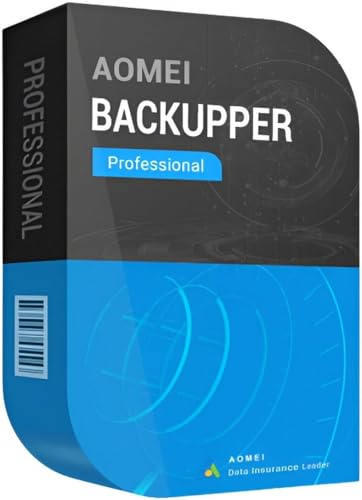
Features: Complete Windows backup and recovery suite with file synchronization and disk cloning. Includes protection against viruses, malware, and ransomware; restore your backup to continue work after incidents. Best for users who want a dedicated, feature-rich backup tool for Windows and multiple recovery options.
- Best for multi-file and disk-level backup in a Windows environment.
- Better for users prioritizing cloning and quick recovery after failures.
- Caution: Some advanced features may require learning the interface for optimal results.
NTI Backup Now EZ 7.5 — All-in-One Backup

Features: A 4-in-1 backup solution including scheduled backups, cloud backups, PC image backups, and file/folder backups. Available in CD or download with clear instructions, compatible with Windows 11 through XP. Best for households needing a versatile, single-source backup plan.
- Best for users who want an inexpensive, broad backup strategy across multiple destinations.
- Better for those who prefer a lifetime license over subscriptions.
- Caution: Cloud backup quality depends on your internet speed and cloud service choices.
Nero BackItUp — Data Backup Software

Features: Fully automated backup with multiple destinations, including external drives, USB, NAS, DVDs, or Cloud services like Google Drive and OneDrive. Lifetime license for 1 PC. Best for users who want a simple, automated backup workflow without ongoing fees.
- Best for a one-time purchase with a straightforward backup plan.
- Choose this if you want consistent, automatic backups across several locations.
- Caution: Cloud options depend on third-party services; verify compatibility with your preferred cloud provider.
Buying Guide: Key Considerations for File Backup Software and Devices
What kind of backup do I need?
Decide between full system image backups, file/folder backups, or both. Full images simplify recovery after major failures, while file-level backups protect specific data.
Where should I store backups?
Consider local drives for speed and offline protection, and cloud storage for off-site safety. A mix often offers best protection against multiple threats.
How important is ransomware protection?
Backup software with ransomware defenses helps prevent encrypted backups and makes recovery safer. Hardware devices with built-in defenses add extra security at rest.
What about licenses and pricing?
Some options are lifetime licenses; others rely on subscriptions. Evaluate long-term costs against feature needs and the number of devices.
Is cloning or image backup required?
Disk cloning copies entire drives for migration or rapid recovery. Image backups capture the system state and can be easier to restore to different hardware.
How easy is the software to use?
Look for intuitive interfaces, guided wizards, and clear restore steps. If you’re less tech-savvy, prioritize automation and straightforward setup.
Which devices complement backup software?
Portable external drives are convenient for offline backups; NAS devices enable networked backups; cloud services offer redundancy and remote access.
Data recovery considerations
Beyond backup, consider separate data recovery tools in case files are accidentally deleted or corrupted before backup runs.
Compatibility and support
Ensure the software supports your OS version (Windows 11/10) and that you can access documentation or customer support if needed.
Final buying questions
- Do you need an all-in-one solution or a modular approach?
- Do you require cross-device backups (PCs, laptops, etc.)?
- Is a lifetime license preferable to ongoing fees?
- Do you want automatic backups, manual backups, or both?
FAQ
- What is the simplest backup method for beginners?
Many users start with an automated backup tool that supports one-click backups and restores, plus cloud or local storage options. - Can I back up to both USB drives and the cloud?
Yes. Many tools support multiple destinations for redundancy and accessibility. - What is a system image backup?
A full snapshot of your operating system and installed programs, useful for complete recovery after major failures. - How often should backups run?
Daily or weekly backups are typical; set a schedule that fits your data creation rate and risk tolerance. - Is ransomware protection essential?
Ransomware-aware backups help prevent harmful encryption from propagating to backups, improving recovery reliability.