Looking to upgrade a laptop with a reliable internal drive? This guide highlights five strong options that fit common needs: speed for operating system tasks and programs, large capacity for media and backups, and dependable builds for everyday use. Best for light to moderate workloads are fast SSDs; best for budget-conscious upgrades are traditional HDDs with ample space. The table below compares each pick at a glance to help you decide quickly.
| Product | Type | Capacity | Best For |
|---|---|---|---|
| PNY CS900 250GB SSD | SSD | 250 GB | Best for OS boot and quick app launches on a tight budget |
| fanxiang S101 1TB SSD | SSD | 1 TB | Best for large apps and media libraries with fast access |
| fanxiang S101 128GB SSD | SSD | 128 GB | Best for ultra-compact upgrades or boot drives when space is limited |
| Seagate BarraCuda 1TB Laptop HDD | HDD | 1 TB | Best for budget-friendly high capacity in laptops |
| Western Digital WD Blue SA510 500GB | SSD | 500 GB | Balanced speed and capacity for everyday use |
PNY CS900 250GB SSD

The PNY CS900 250GB 2.5″ SATA III internal SSD is designed for faster OS boot times and rapid software loading. With sequential read speeds up to 535 MB/s and write speeds around 500 MB/s, this drive improves general responsiveness when compared to traditional HDDs. It is well suited for users who want a snappier system and quicker program launches on a tight budget.
Who it’s best for: users seeking a solid, budget-friendly upgrade for operating system speed and everyday tasks on laptops or desktops. Why selected: it provides noticeably faster boot and load times without breaking the bank. Caution: 250 GB may fill quickly with modern software and large media libraries, limiting space for data-heavy tasks.
TOSHIBA 1TB 5400RPM Laptop HDD
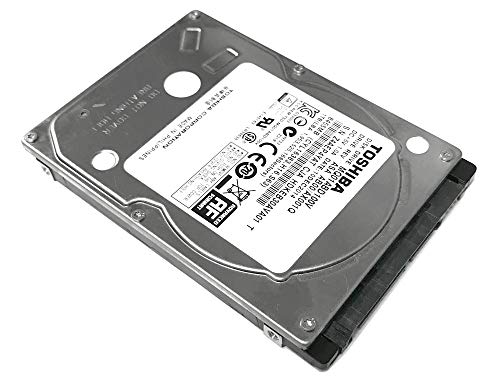
The Toshiba MQ01ABD100V is a 1TB 2.5″ notebook hard drive featuring 5400 RPM operation and 8 MB of cache. It uses SATA 3.0Gb/s and sits about 9.5 mm high, offering straightforward capacity expansion for laptops that prioritize cost efficiency over speed. It’s a reliable option for those who need more storage without paying a premium for solid-state performance.
Who it’s best for: buyers needing high capacity at a lower price point for general storage, media libraries, and backups. Why selected: widely compatible with many laptops and desktops. Caution: slower read/write speeds compared to SSDs, which affects OS boot and program load times.
fanxiang S101 1TB SSD

The fanxiang S101 1TB SSD delivers up to 520 MB/s read speeds and uses 3D NAND TLC, which supports longer write endurance compared to lower-tier flash. This drive gives a strong balance of high capacity and fast access for laptops, making it ideal for users who want spacious storage without sacrificing responsiveness.
Who it’s best for: power users needing ample storage for applications, games, and media with solid speed. Why selected: high capacity paired with robust NAND technology. Caution: as a 2.5″ SATA SSD, it can be limited by the laptop’s SATA interface and thermal constraints in tight spaces.
fanxiang S101 128GB SSD

The 128GB variant from fanxiang provides a compact upgrade option with fast SATA performance as a boot or cache drive. It uses 3D NAND TLC to improve durability relative to older flash types and delivers noticeably quicker boot times than HDDs of equivalent capacity.
Who it’s best for: ultralight builds or systems needing a small, fast OS drive. Why selected: best for budget-conscious users who want to upgrade to solid-state performance with minimal space usage. Caution: limited capacity may require external storage for large media libraries.
Seagate BarraCuda 1TB Laptop HDD

The Seagate BarraCuda 1TB internal laptop hard drive offers a traditional storage approach with a 1 TB capacity and a 2.5″ form factor. It uses SATA 6 Gb/s and features a 128 MB or similar cache in its family and 5400 RPM operation, making it a dependable option for large storage needs at a lower cost than SSDs.
Who it’s best for: users who prioritize affordable capacity and straightforward compatibility for long-term backups and large media collections. Why selected: a familiar, widely supported option for laptops. Caution: slower data access and longer load times compared to SSDs, which affects system responsiveness.
WD Blue SA510 500GB SSD

The WD Blue SA510 is a 500 GB internal SSD designed for reliable performance with SATA III speeds up to 560 MB/s. It’s a balanced option for everyday use, offering improved boot times and faster file access compared to HDDs, while maintaining a reasonable price point for mid-range upgrades.
Who it’s best for: users seeking a dependable all-around SSD with solid speed and good value. Why selected: broad compatibility and steady performance for general computing tasks. Caution: 500 GB may feel limited for users with large multimedia libraries without external storage options.
Buying Guide
What should you consider when choosing an internal laptop drive?
Primary goal determines the choice: speed, capacity, or cost. SSDs deliver faster boot times, quicker file access, and better resilience to shocks. HDDs offer higher capacity per dollar and longer-term storage for backups. Check your laptop’s compatibility: form factor (2.5″), thickness, SATA version, and available interface power.
Which is the right drive for OS and boot speed?
- Choose an SSD with high sequential read/write speeds (look for 500 MB/s or higher).
- Prefer drives with 3D NAND or equivalent durable flash memory.
- A 250 GB to 1 TB capacity is typically sufficient for OS and essential programs.
Which option fits large media libraries or game storage?
- Consider 1 TB or more in HDD or SSD depending on budget and performance needs.
- HDDs provide cost-effective, high-capacity storage for videos, music, and backups.
What about reliability and durability?
- SSDs have no moving parts, reducing mechanical failure risk and shock sensitivity.
- HDDs rely on spinning platters; handle with care to avoid data loss from drops or impacts.
How to install and migrate data?
- Use a cloning tool or fresh OS installation to migrate data to an SSD for best results.
- Ensure you have backups before swapping drives, especially for important files.
- Check firmware updates for compatibility and performance improvements.
FAQ
What is the main difference between a laptop SSD and a laptop HDD?
SSDs provide faster access, better durability, and quicker boot times, while HDDs offer higher capacity per dollar for long-term storage and backups.
Is a 500 GB SSD enough for most users?
Yes for many users, especially when paired with external storage or cloud backups. It provides a balance of speed and space for OS, apps, and data.
Can I upgrade my laptop with any 2.5 inch drive?
Most modern laptops support 2.5″ drives, but ensure compatible height (thickness) and SATA interface. Check service manuals for exact requirements.
Should I mix SSDs and HDDs in a single laptop?
Yes. An SSD can host the OS and programs, while an HDD can store large files and backups, optimizing both speed and capacity.
What is TRIM and why does it matter?
TRIM helps maintain SSD performance by informing the drive which blocks are unused. Ensure your OS and drive support TRIM for longevity and speed maintenance.