Finding a reliable PDF converter for Mac hinges on accuracy, ease of use, and feature depth. This guide identifies five strong options, each suited to different user needs—from quick conversions and batch processing to advanced editing and e-signatures. Whether you’re a student, a professional, or a small business owner, you’ll see which tool best fits your workflow and why. The overview table highlights key strengths to help you compare at a glance.
| Product | Best For | Key Strength |
|---|---|---|
| Doxillion Free Document Converter for Mac | Batch conversions and wide format support | Converts 50+ formats quickly; preview before converting |
| Adobe Acrobat Pro | All-in-one PDF creation, editing and e-sign | Extensive editing, collaboration, and e-sign features |
| Acrobat Pro (1-Month) | Short-term professional PDF work | Full Acrobat features with flexible trial/monthly access |
| Scrivar PDF Pro | All-in-one lifetime license without subscription | 30+ tools, OCR, eSign, and batch processing |
| PDF Extra Ultimate | Document creation, editing and organisation | Convert, edit, and organize PDFs on Windows/macOS ecosystem |
Buyer note: The products below cover a spectrum from free or low-cost options to professional-grade suites. Choose based on how often you convert, whether you need advanced editing, and if you require built-in e-signature capabilities. All selections are compatible with macOS ecosystems and designed to streamline PDF workflows.
Doxillion Free Document Converter for Mac

Doxillion Free Document Converter for Mac from NCH Software supports more than 50 document formats for quick conversions. It includes a preview feature to confirm files before processing, reducing errors. Batch conversion lets you handle thousands of files in one run, ideal for offices and freelancers who deal with large volumes. This option is best for users who need a straightforward, no-frills converter with broad format support and batch processing capabilities.
Best for: Professionals who convert large file batches and need broad format compatibility without subscription fees. Limitations: The free version may have fewer advanced editing features compared with paid suites.
Adobe Acrobat Pro

Adobe Acrobat Pro provides comprehensive PDF creation and editing tools, with strong collaboration features and e-sign capabilities. It enables you to edit text and images directly within PDFs, and allows recipients to sign documents without logging in. This option is best for teams and individuals who need robust PDF management, frequent collaboration, and secure e-sign workflows across devices.
Best for: Professionals needing a complete PDF workflow with drafting, editing, and signature capabilities. Caution: It’s a broader suite, which may be more than needed for simple conversions.
Acrobat Pro (1-Month Subscription)

This 1-month Adobe Acrobat Pro option focuses on quick, temporary access to the full PDF toolkit. It supports creation, editing, collaboration, and e-signing across devices, with the same seamless integration as the full suite. It’s best for freelancers or teams needing temporary access for a major project or peak workloads. A limitation is the subscription model and the need to renew for extended use.
Best for: Users requiring full-feature access for a short project window. Choose this if you want no long-term commitment and flexible access.
Scrivar PDF Pro
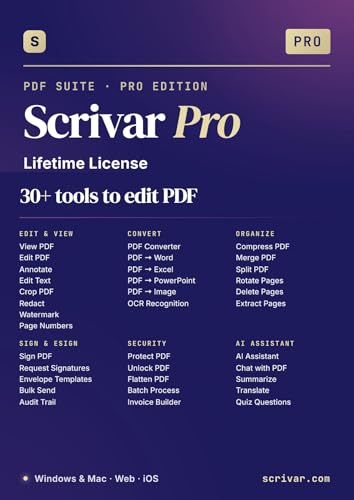
Scrivar PDF Pro bundles 30+ tools into a single lifetime-license app. It includes edit, convert, merge, compress, eSign, OCR, redact, watermark, and batch processing without ongoing subscription fees. This solution is best for users who want a comprehensive, no-subscription, all-in-one PDF toolkit and prefer lifetime access with free updates.
Limitation: As with any all-in-one tool, the interface may present more options than needed for casual users. Assess the feature set against your daily tasks before committing.
PDF Extra Ultimate

PDF Extra Ultimate from MobiSystems positions itself as a versatile PDF reader and editor. It supports creating, editing, converting, combining, commenting, filling, and signing PDFs. The package is suitable for users who need an all-around tool across Windows and macOS, including mobile workflows. It’s best for individuals who value document management in a single ecosystem and want reliable cross-device functionality.
Limitation: The offering is a yearly license, which may be less attractive to those seeking a one-time purchase across platforms.
Buying Guide: Key Considerations For Mac PDF Converters
- Conversion needs: Do you convert large batches or mostly single files? Tools like Doxillion excel at batch processing, while others offer strong single-file editing.
- Editing vs. viewing: If you need heavy editing and document design, look for tools with text/image editing and layout controls, not just conversion.
- E-signature capability: If signing documents is frequent, prioritize solutions with built-in e-sign workflows and easy recipient signing.
- File format support: Check the range of export formats beyond PDF, such as DOCX, PPT, or image formats to fit your workflow.
- Subscription vs. lifetime: Consider whether you prefer a one-time purchase, a monthly/annual subscription, or a perpetual license with updates.
- Cross-device workflow: If you work across Mac, Windows, and mobile, ensure the tool supports multi-device syncing and online access where needed.
- Security and compliance: For sensitive documents, verify encryption, permissions, and secure sharing features included in the tool.
Frequently Asked Questions
- What is the easiest PDF converter for Mac?
- Do these tools offer OCR for scanned documents?
- Is a subscription required for PDF editing on Mac?
- Can I sign documents directly within these tools?
- Should I choose a Mac-only tool or a cross-platform one?
- What’s the best option for small teams?
The easiest option depends on your needs. For quick converting with broad formats, Doxillion offers a simple interface and batch options. For comprehensive editing and signing, Adobe Acrobat Pro provides robust features.
Some tools include OCR as part of their feature set, such as Scrivar PDF Pro, which enables text extraction from scanned pages within the app.
No. Some products offer lifetime licenses (such as Scrivar PDF Pro) or perpetual licenses, while others are subscription-based (like Adobe’s suites) with ongoing updates.
Yes. Several options include built-in e-signature capabilities, allowing recipients to sign without separate accounts or apps.
Mac-focused tools can streamline macOS workflows, while cross-platform options help if you share files with Windows users or work across devices.
For teams, a tool with collaboration features, cloud access, and secure sharing—like Adobe Acrobat Pro—tends to fit better, though licensing costs should be weighed.