Looking for touch typing software that improves speed and accuracy for all ages? This guide highlights five top options that work across Windows, Mac, and school settings. Each pick is best for different users—from kids just starting out to adults aiming to boost productivity. The following summary table helps compare core strengths at a glance.
| Product | Brand | Best For |
|---|---|---|
| Typing Coach 10 | Markt + Technik | Adults and students who want a structured 10-finger approach |
| Typing Instructor Bundle | Individual Software | Families and classrooms needing dual programs (kids & adults) |
| Typing Instructor Bundle Gold | Individual Software | Mac users seeking a dual-program learning path |
| Typing Instructor Gold | Individual Software | Anyone wanting multiple destinations and skill plans on PC |
| Typing Instructor for Kids Platinum 5 | Individual Software | Young learners with a kid-focused adventure format |
Typing Coach 10 — Typing Software For All Ages
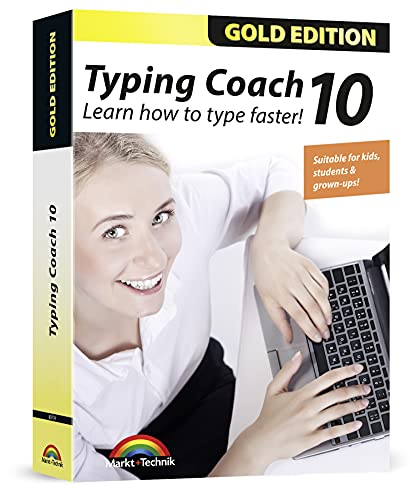
Brand: Markt + Technik. Features highlight 20 intelligent typing lessons plus 38 topic-related lessons. Emphasizes 10-finger typing to save time and reduce strain. Best for adults, students, and families seeking a comprehensive accelerator for everyday writing, emails, and homework. A potential limitation is that platform compatibility is limited to the listed Windows versions; verify system requirements before purchase.
Typing Instructor Bundle — Kids & Adults

Brand: Individual Software. Best for families and classrooms needing two programs, supporting Windows 11, 10, and 8. Learners range from kids aged 6 to adults, with English or Spanish options. Rewards and adventurous themes help maintain motivation. Limitation: multiple programs may require more storage and longer install times.
Typing Instructor Bundle Gold — Mac
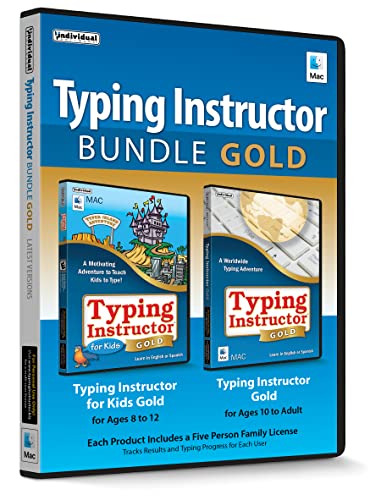
Brand: Individual Software. Designed for Mac OS X 10.12 to 12.4. Educational and entertaining with a family license for five users. Tracks typing results and progress for each user. Best for Mac-embracing households or small schools seeking a dual-program setup. Limitation: Mac-only compatibility means Windows users may need alternative options.
Typing Instructor Gold — PC
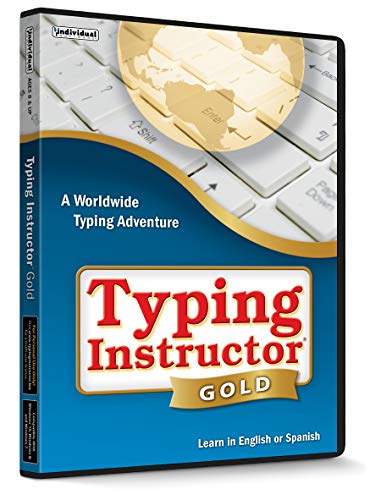
Brand: Typing Instructor. Features 20 skill-appropriate plans, full-screen lessons, and travel-themed rewards. Suitable for PC users who want a guided, game-like journey across 36 destinations. Better for learners who enjoy immersive visuals and structured milestones. Caution: Some users may prefer a non-full-screen mode for multitasking.
Typing Instructor for Kids Platinum 5

Brand: Individual Software. Focused on kids with a Typer Island adventure and age-appropriate plans meeting standards like NETS/ISTE and Common Core. Offers English or Spanish learning. Best for young learners who respond to colorful animations and engaging storylines. Limitation: Some advanced users may outgrow the kid-centric design and seek more adult-friendly content.
Typing Instructor Platinum — PC

Brand: Individual Software. Offers 36 travel destinations and three unique travel themes to keep practice varied. Improves typing speed and accuracy with multilingual options in English or Spanish. Best for users who enjoy global-themed journeys and want ongoing motivation. Caution: The program emphasizes travel themes; some users may seek more practicality-focused exercises.
Typing Instructor Bundle Gold — Mickey Mouse Edition

Brand: Individual Software. Includes Disney characters like Mickey and friends with full-color animations. Family license for five users and progress tracking. Best for households seeking a highly engaging, kid-friendly experience. Limitation: Disney-themed content may be less appealing to teens or adults who want a more neutral interface.
Buying Guide
What should you consider when choosing touch typing software? Start by identifying your primary user: a child, a student, or a professional. Evaluate platform compatibility (Windows vs. Mac), number of users supported, and whether you want a single-program option or a bundle with multiple licenses. Look for structured lessons, progress tracking, and gamified rewards to sustain motivation. Consider language options if bilingual learning matters. For families, dual-program bundles can streamline usage across ages. If you need classroom-ready content, prioritize programs with adherence to standards and teacher-friendly features.
Key purchase considerations
- Target audience and age: Kid-focused interfaces vs. adult-oriented tutorials.
- Device compatibility: Windows, Mac, or cross-platform access.
- Licensing: Single-user, family licenses, or classroom bundles.
- Progress tracking: How well the program logs speed and accuracy.
- Engagement: The balance between games, adventures, and traditional typing drills.
Quick comparison at a glance
- Best for adults seeking a structured, comprehensive course: Typing Coach 10.
- Better for families needing two programs with cross-age support: Typing Instructor Bundle (Windows).
- Choose this if Mac users want a dual-program path: Typing Instructor Bundle Gold (Mac).
- Best for ongoing PC practice with rich destinations and scales: Typing Instructor Gold (PC).
- Choose this for young learners who respond to story-driven lessons: Typing Instructor for Kids Platinum 5.
FAQ
- What is touch typing software best used for?
It helps learners build accurate, rapid typing using all fingers, reducing fatigue and increasing productivity. - Can these programs work on both Windows and Mac?
Some programs are platform-specific; check the product page for compatibility details. - Are bundles useful for families?
Yes. Bundles often provide licenses for multiple users, which suits households with different age groups. - Do these programs require ongoing purchases after a trial?
Many offer a 7-day or longer trial period and then require a license or subscription for continued use. - Is progress data shared across devices?
Some programs track progress per user, while cross-device syncing varies by product.